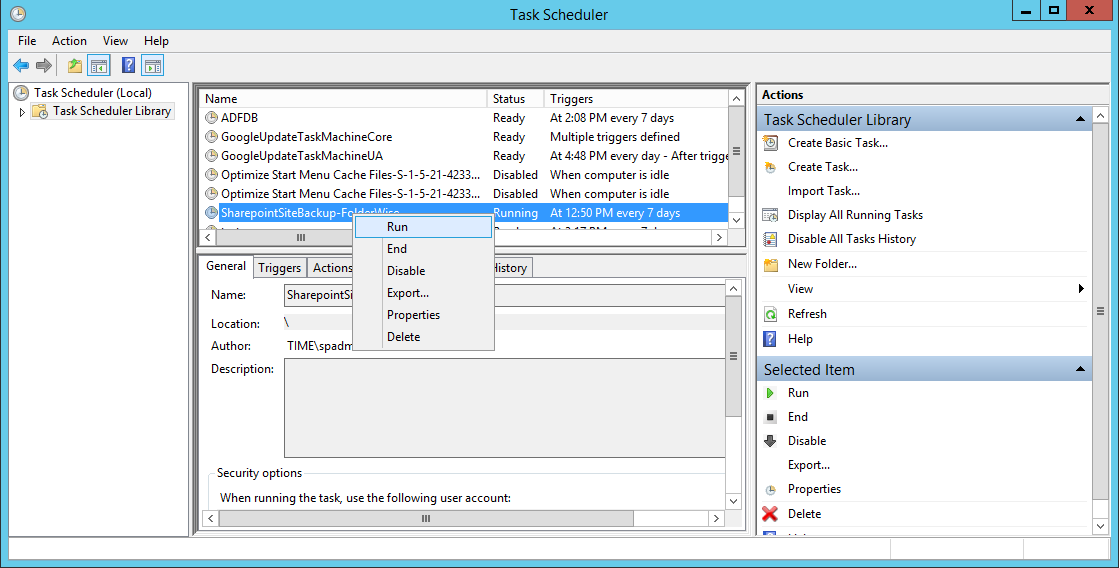
SharePoint administrators need to run regular backups using Power Shell, the STSADM tool or in Central Administration. But taking these backups on a daily basis can be a tedious process, hence either we can sit back and take backup, waiting for it to get over or we can go home and sleep on the couch, while the Power Shell and Task Scheduler take cares of the rest.
Creating Power Shell script to take Backup Daily Folder Wise:
Add-PsSnapin Microsoft.SharePoint.Powershell –ErrorAction SilentlyContinue
try
{
$today = (Get-Date -Format dd-MM-yyyy)
$backupDirectory = "E:\Backup\DailySiteCollectionBackUp\$today"
# Backup file Location
$backupFile = "E:\Backup\DailySiteCollectionBackUp\$today\Backup.dat"
# Log file location
$logFile = "$backupDirectory\BackupLog.log"
# Address of the Site Collection to backup
$Site = "http://sp2013dev:100/"
# Location of the Backup Folder
if (-not (Test-Path $backupDirectory))
{
[IO.Directory]::CreateDirectory($backupDirectory)
#New-Item $logPath -type $backupDirectory
}
# Get backup start date and time
$backupStart = Get-Date -format "MM-dd-yyyy HH.mm.ss"
# creates a log file Start-Transcript -Path
Start-Transcript -Path $logFile
# This will actually initiate the backup process.
Write-Host
Write-Host
Write-Host "Backup starting at $backupStart for $Site "
Write-Host "******************************************"
Backup-SPSite -Identity $Site -Path $backupFile -Force
$backupComplete = Get-Date -format "MM-dd-yyyy HH.mm.ss"
Write-Host
Write-Host
Write-Host "Backup Completed at $backupComplete for $Site "
Write-Host "******************************************"
Stop-Transcript
}
Catch
{
$ErrorMessage = $_.Exception.Message
write "$today BackUp Failed $ErrorMessage ">>$logFile
}
Task Scheduler:
1.Open Tools -Task Scheduler
2.In the Center pane,right-click Create Basic Task
3.Assign the task a meaningful name – such as SharepointSiteBackup-FolderWise
4.Choose “Daily” on the When do you want the task to start screen
5.Specify the parameter for the Daily task schedule
6.Choose “Start a program” from the what action do you want the task to perform
7.On the start a program screen type in the command as the screenshot below. The Task scheduler is intelligent enough to recognise that you want to run Power Shell and that you supplied arguments.